Web terminal & CLI
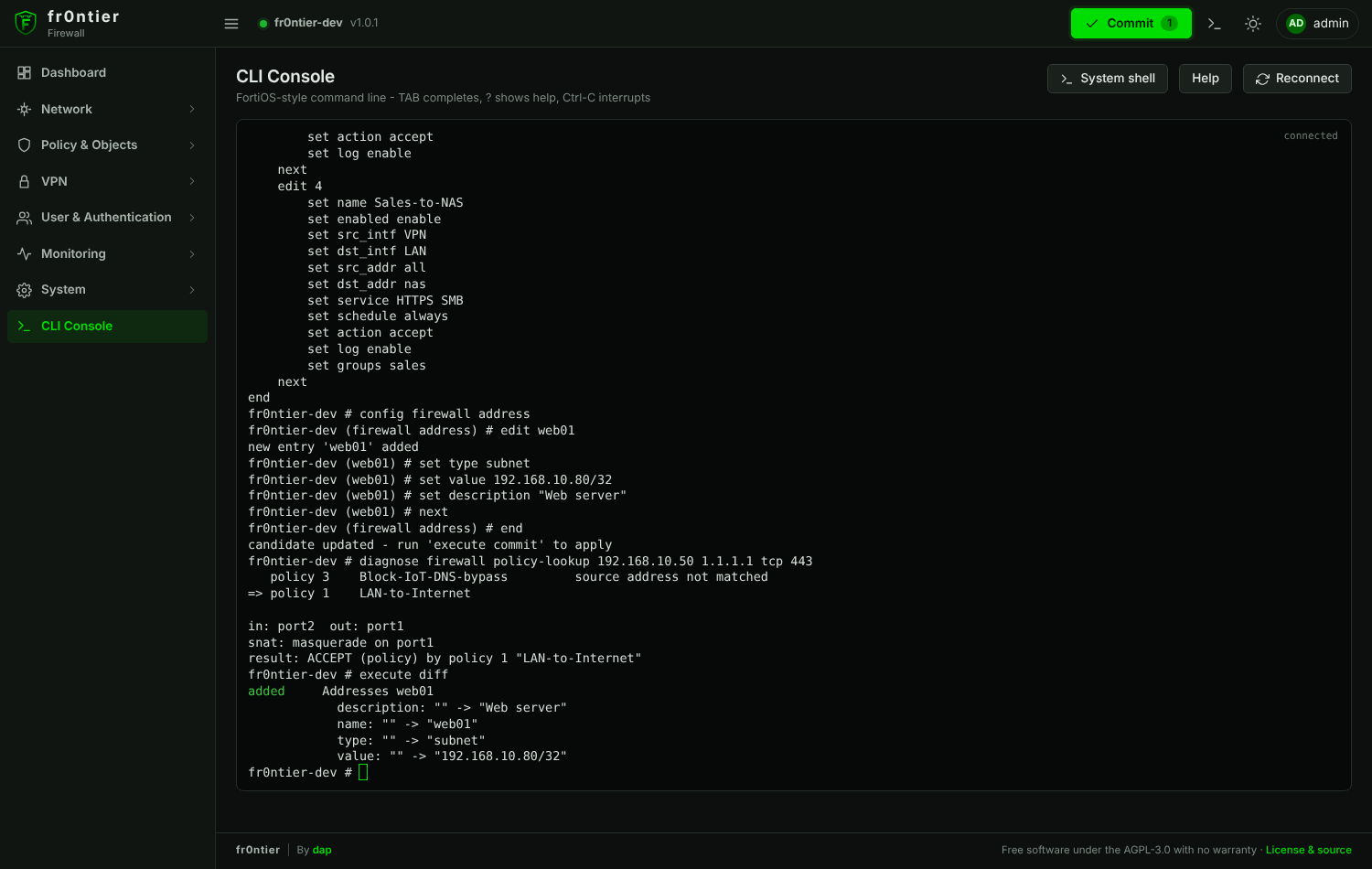
The CLI Console page opens a terminal in the browser (WebSocket). The same CLI is
available on the console or over SSH with fr0ntier cli.
Editing
The line editor supports history (↑/↓), TAB completion, ? contextual help,
Ctrl-A/E/U/K/W, Ctrl-L and Ctrl-C (also interrupts running commands such as a
packet capture).
Configuration mode
fr0ntier # config firewall policy
fr0ntier (firewall policy) # edit 0                 ← 0 = new entry with the next ID
new entry '4' added
fr0ntier (4) # set name Guests-to-Internet
fr0ntier (4) # set src_intf GUEST
fr0ntier (4) # set dst_intf WAN
fr0ntier (4) # set service WEB DNS
fr0ntier (4) # set nat enable
fr0ntier (4) # next
fr0ntier (firewall policy) # move 4 before 1
fr0ntier (firewall policy) # end
candidate updated - run 'execute commit' to apply
fr0ntier # execute commit confirm 5 guests policy
set/unset/append/unselecton fields; nested fields use dots (set wifi.ssid Office), tables inside an entry useconfig(config peers).showprints non-default values,getprints all fields.endvalidates the whole configuration and writes the candidate;abortdiscards.
The configuration sections are listed in the CLI reference.
System shell
Super admins can run execute shell (or the System shell button) to get a real bash
on a pseudo-terminal inside the same window — full-screen tools such as top, less
and nano work. Shell sessions are recorded in the audit log.